
Excel for Windows Solvers V11.5 Update Downloads
Step 1 of 4: Download the correct 32-bit or 64-bit version of our Frontline Solvers. This file will include Risk Solver Platform, Premium Solver Platform, Risk Solver Pro and Premium Solver Pro. Once you install, your existing license will determine which is activated.
- If you are using Excel 2003 or 2007, download Frontline Solvers for Excel V11.5 32-bit.
- If you are using Excel 2010, click on Excel's File menu, then Help. The screen will look like the screenshot below. On the right hand side, under the words About Microsoft Excel, you'll see either (32-bit) or (64-bit).
-
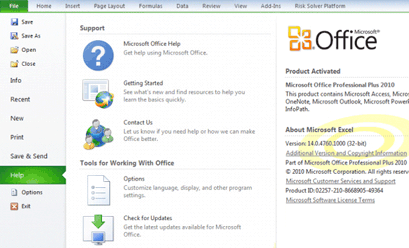
- For 32-bit, download Frontline Solvers for Excel V11.5 32-bit
- For 64-bit, download Frontline Solvers for Excel V11.5 64-bit
- Save the file to your desktop, without changing the filename.
Step 2 of 4: Run the Frontline Solvers for Excel Setup program.
- Double-click the SolverSetup program to start installation.
- If you have a V11 license, you won't have to enter an installation password or a license activation code. Just click Next in the license dialog.
- If you don't have a V11 license, check your Inbox for an email containing an installation password and a license activation code. Enter these in the license dialog, and click Next.
Need help? Email support@solver.com or call 775-831-0300 (GMT-7:00).
Step 3 of 4 (optional): Download additional Plug-In Solver Engines
- If you have a license for one or more plug-in Solver engines, you'll want to update those to V11.5 as well. To work properly, plug-in Solver engine versions must match the installed Premium Solver Platform or Risk Solver Platform version number.
- As above, if you are using a 32-bit version of Excel you should download a 32-bit version of the Solver engines. If you have a 64-bit version of Excel you should download the 64-bit version.
- For 32-bit, download Solver Engines 32-bit V11.5
- For 64-bit, download Solver Engines 64-bit V11.5
Step 4 of 4 (optional): Check your inbox for a Solver Engines installation email, then install.
- If you install the plug-in Solver Engines, you will receive a new email with a separate installation password and activation code.
- Double-click the EngineSetup program to start installation.
- Enter the password and the activation code when prompted.
- Once installed, you will see the licensed engine(s) on the Engines tab in the Task Pane.
Need help? Email support@solver.com or call 775-831-0300 (GMT-7:00).